How do you create an invoice for professional services?


 Copied to clipboard.
Dozens of clients on retainer. A dozen more billed by project or by the hour. Every month, someone on the team recalculates fees, rebuilds invoices from last month's version, and still chases three or four people for payment that's already two weeks late.
To create an invoice for professional services, turn the services, fees, billing schedule, taxes, and payment terms already sitting in a signed client agreement into a clear, numbered invoice with matching line items and due dates. For firms juggling recurring retainers, project fees, and scope creep, the invoice should pull straight from what the client already approved instead of being rebuilt from scratch each cycle.
Getting that invoice right the first time depends on the fee structures, integrations, and collection workflow that stop billing from eating a full day every month.
Key takeaways
- Creating an invoice for professional services works best when line items are pulled directly from the signed agreement rather than built from scratch each time.
- Recurring retainers and variable, project-based fees can run through the same billing workflow instead of separate manual processes.
- Collecting payment authorization when a client signs a proposal can reduce the need to chase payment after work is delivered.
- Firms can bring outstanding invoices sitting in Xero or QuickBooks Online into an automated collection workflow instead of following up manually.
- Connecting invoicing to Xero, QuickBooks Online, and Gusto can remove manual reconciliation and payroll-linked fee calculations each billing cycle.
How invoicing protects cash flow
Accurate invoices sent on schedule shorten the path from completed work to collected revenue, protecting the cash flow professional services firms depend on to cover payroll and overhead. Every day an invoice sits unsent or under dispute is a day that revenue stays on paper instead of in the bank.
Mismatched scope, incorrect fees, or vague line items give clients a legitimate reason to pause approval. That pause often turns into a back-and-forth email thread, and every round of clarification pushes the payment date further out.
Days sales outstanding (DSO) measures how many days, on average, it takes to collect payment after an invoice goes out, and it's the metric that shows whether billing changes are working. A rising DSO signals growing friction somewhere in the invoice-to-payment cycle.
Pull your DSO trend alongside overdue balances and a log of recent invoice corrections. If errors and DSO move together, the fix is in the invoicing workflow itself, not the client relationship. Automating that workflow removes much of the manual risk behind these delays.
Creating invoices for professional services
Create an accurate professional services invoice by matching every line to the signed proposal or engagement letter, translating that scope into itemized charges, then adding the client, date, tax, and payment details needed to send. Skip that first step and everything downstream is guesswork.
Follow this sequence for every invoice, regardless of fee type:
- Confirm the signed proposal or engagement letter and check that the work being billed matches the approved scope.
- Add firm and client names, addresses, and contact details so the invoice routes to the right entity.
- Assign a unique invoice number and include the issue date and the service period covered.
- Convert approved services into clear line items, showing quantities, hourly rates, fixed fees, or milestone amounts as they appear in the agreement.
- Calculate the subtotal, apply any taxes or credits, and total the amount due.
- Add the due date, payment terms, accepted payment methods, and any late-payment policy the client agreed to.
Steps five and six are where most billing disputes start, so treat them as a checkpoint rather than a formality. A subtotal that doesn't tie back to the rates or fixed fees in the agreement will trigger a client question before it triggers a payment.
Tax and compliance requirements depend on where the firm and client operate and what kind of services the firm delivers. Some jurisdictions require a tax identification number on every invoice; others require specific language for regulated services like tax preparation or licensed advisory work.
Confirm the applicable sales tax, VAT, or GST treatment, along with any professional licensing disclosures your industry requires, before the invoice goes out. These requirements vary enough by jurisdiction and industry that a firm operating across state or country lines should treat this as a standing checklist item reviewed every cycle.
Before sending, run a final check against the signed agreement:
- Do the line items, rates, and totals match what the client approved?
- Is the due date consistent with the agreed payment terms?
- Are the tax fields complete for the client's jurisdiction?
Once those three checks pass, apply restrained branding, such as a firm logo and consistent color in the header, and add a short client-specific note referencing the project or service period. Skip anything that adds visual clutter or buries the total due. Then, send the invoice to the person who approves payment rather than just the primary contact, since routing it to the wrong inbox is one of the most common causes of a late payment unrelated to the client's ability to pay.
Firms billing the same client type repeatedly benefit from locking this checklist into a template so each new invoice starts from the approved structure rather than a blank document.
Billing recurring and variable work
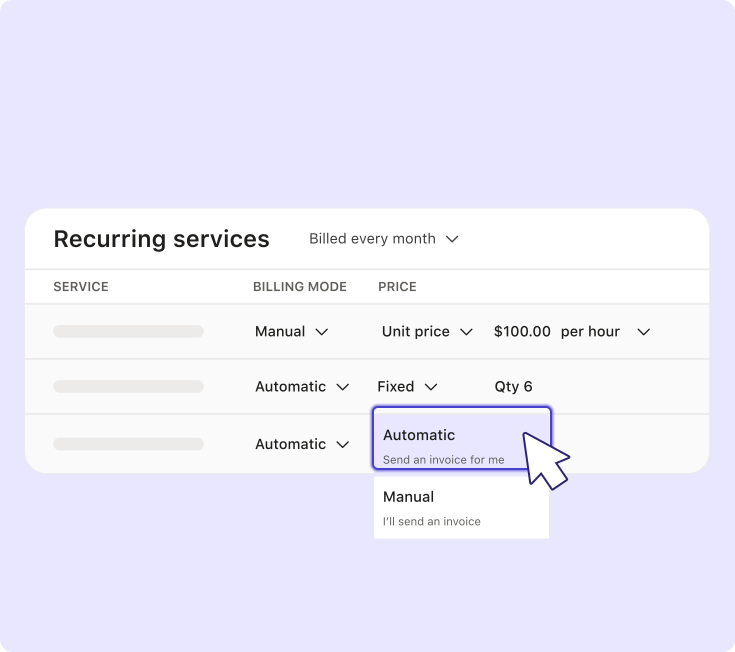
Recurring retainers and variable fees can run through one workflow when every charge ties back to the fee type and billing schedule in the signed agreement, instead of separate manual processes for each fee structure. That agreement, delivered through online proposal management, captures scope, fee type, billing schedule, and terms before any invoice is created. Once a client accepts, Ignition Billing has what it needs to generate charges accurately. The next question firms face: keeping those approved fees current as prices change.
Systematic fee increases with AutoPricing
Ignition AutoPricing applies a fee increase across every affected client contract at once, replacing the slow work of opening and editing agreements one by one. Instead of tracking down each contract, adjusting the fee, and hoping nothing gets missed, an operations lead sets the increase once and applies it to the entire client group.
The practical sequence starts with reviewing which clients the increase affects, whether that's every retainer client or a specific service line. From there, set the new fee amount and effective date, then send clients clear notice before the change takes place, giving them time to ask questions or adjust their own budgets.
Once approved, that updated price carries forward automatically. Every invoice generated after the effective date reflects the new fee, since the update applies to every contract at once instead of relying on a manual check for each one.
Getting paid without chasing clients
Professional services firms reduce payment chasing by building collection into the agreement and invoice workflow before balances become overdue. If you're managing 50 or more mixed-fee clients and manually following up on late balances every month, that follow-up work is a workflow gap rather than a client problem.
Two separate mechanics close that gap: capturing payment authorization upfront for new engagements, and applying automated invoicing to balances already outstanding.
Payment authorization at signing
Collecting payment authorization when a client signs a proposal removes the need to send a separate payment request once the invoice goes out. The client provides payment details during acceptance, so the billing step is already handled before the first invoice is even generated.
Proposal acceptance itself becomes the authorization event. Once a client signs, charges process automatically according to the billing schedule written into the agreement, whether that's a monthly retainer, a milestone payment, or a one-time project fee, using supported payment methods set up in advance.
This matters beyond convenience. Around 78% of Ignition customers report fewer late payments when they capture payment details at signing rather than chase them down after the fact.
Firms managing dozens of client agreements at once need this authorization built into every proposal from the start. For a closer look at connecting signed agreements to automated billing, see this guide on automating invoicing and billing through contract management.
Automated collection for outstanding invoices
AutoCollect takes existing outstanding invoices sitting in Xero or QuickBooks Online and moves them into an automated collection workflow that removes manual chasing. It works with invoices already in the accounting ledger as well as new ones created going forward.
The sequence is straightforward. Connect Xero or QuickBooks Online to Ignition, then import eligible outstanding invoices directly into AutoCollect. From there, clients get invited into a payment workflow that lets them settle balances directly instead of continuing a back-and-forth email thread.
Compare that to the usual approach: drafting a follow-up email, waiting a few days, sending a second reminder, then a third. AutoCollect replaces that repeated manual effort with a system that keeps working through the backlog automatically, so accounts receivable no longer depends on someone remembering to hit send.
Stop chasing overdue invoices one by one
See how Ignition eliminates AR backlogs in four steps.
Connecting billing to your accounting tools
Connecting billing to Xero, QuickBooks Online, and Gusto removes repeated reconciliation and payroll-calculation work by syncing invoice and payment data directly into the tools a firm already uses. That connection keeps data flowing automatically instead of being keyed in twice across agreements, invoices, and payroll records.
Xero handles reconciliation, QuickBooks Online manages billing and outstanding invoices, and Gusto supplies headcount data for variable fee calculations. As AI-enabled billing fraud grows more common, stronger approval controls matter across every connected workflow.
Xero for real-time reconciliation
Connecting billing to Xero keeps invoice and payment records aligned so firms can reconcile activity without manually matching transactions each month. Once a firm raises an invoice in Ignition, it syncs to Xero as an accounting record tied to that client and engagement. When the client pays, the payment updates in Ignition and reflects in Xero, and the invoice status changes to paid on both sides at the same time.
That means the ledger in Xero already shows what's outstanding and what's settled, without a separate spreadsheet or a monthly scramble to line up bank deposits against open invoices.
Before closing the books each month, confirm that invoice and payment statuses match between Ignition and Xero rather than manually matching individual line items. Open the invoice list in both systems side by side and check that anything marked paid in Ignition shows the same status in Xero, and that any invoice still open in one system is still open in the other. A mismatch usually means a payment was recorded outside the normal flow, and catching it during this check is faster than discovering it during reconciliation at month-end close.
QuickBooks Online for streamlined billing
Connecting billing to QuickBooks Online cuts down on duplicate invoice and payment entry between the agreement and the ledger. Once a firm creates an invoice in Ignition, it syncs to QuickBooks Online, so staff aren't re-keying line items, amounts, or client details a second time.
That sync also carries payment status, so when a client pays, the record updates in both places and confirming the books becomes a matter of checking that the two systems agree instead of tracing every transaction by hand each month.
For firms sitting on a backlog of unpaid balances, those QuickBooks Online invoices can move into the same AutoCollect workflow described earlier instead of being chased down one by one.
Before turning that workflow on, pull up the outstanding invoices report in QuickBooks Online and review the backlog. Disputed invoices or ones tied to a client conversation already underway don't belong in an automated sequence, so decide which balances are ready to move before importing them into AutoCollect.
Gusto for payroll-linked billing
Smart Billing pulls headcount data directly from Gusto and uses it to calculate variable, payroll-linked client charges automatically. This matters most for firms billing clients based on employee count, where the fee changes every time a client hires or lets someone go.
Before this connection, calculating a headcount-based invoice meant logging into a client's payroll system, counting active employees, then rebuilding the fee math in a spreadsheet before it could go anywhere near an invoice. That process repeats every billing cycle, for every client on a variable headcount rate, with full exposure to transposition errors and missed updates. After connecting Gusto, Smart Billing reads the current headcount directly from payroll records and applies it to the fee formula on file, so the invoice reflects the actual employee count automatically.
Before turning on this calculation for a client, confirm the signed agreement states the headcount-based pricing rule, including the rate per employee and any thresholds or tiers. Smart Billing calculates against whatever rule is documented, so an agreement with a vague or missing pricing clause produces an invoice nobody can defend if the client asks how the number was reached. Get that rule written into the agreement first, then let the payroll data do the recalculating.
Streamline invoicing and payments with Ignition
Ignition, Xero, and QuickBooks Online differ most in whether billing connects directly to signed client scope, not in basic transaction recording. That gap surfaces in moments like a mid-year headcount jump that throws off a fixed monthly retainer, when pricing lives separately from the actual scope of work.
Xero and QuickBooks Online record transactions and issue native invoices once someone tells them what to charge. The gap sits earlier, in the moment scope changes or a proposal gets signed, which is where the three platforms diverge.
This is precisely the workflow Ignition was built to close. Smart Billing pulls the numbers directly from Gusto, Xero, or QuickBooks Online, while payment authorization at signing means the charge goes through without a separate ask, and AutoCollect sweeps up anything still sitting in accounts receivable.
Ready to stop rebuilding invoices from scratch every month?
Connect your signed agreements to automated billing and collection in one place.
Frequently asked questions
-
A professional services invoice should include client details, a unique invoice number, issue and service dates, clear service descriptions, fees, applicable taxes, the total due, accepted payment methods, and payment terms. Every line item should map directly to the signed proposal or engagement letter so the scope, pricing, and billing cadence match what the client approved. Firms serving specific industries or jurisdictions may also need compliance details, including tax information or deduction requirements for certain contractor work.
-
Retainer, hourly, and project-based work can run through the same billing workflow when each fee type is connected to the original client agreement. Recurring fixed fees follow their approved schedule, while hourly, project, or usage-based charges are added according to the agreed pricing rule or milestone. Ignition Billing keeps these fee structures together so firms managing 50 or more clients don't have to rebuild invoices or maintain separate spreadsheet workarounds each cycle.
-
Firms are more likely to get invoices paid promptly when they collect payment details at proposal signing instead of requesting them after work is delivered. Upfront authorization allows charges to process according to the agreement the client already accepted, reducing the need for separate payment requests and follow-up emails. Firms can also move outstanding invoices already in Xero or QuickBooks Online into an automated collection workflow.
-
Xero and QuickBooks Online generate invoices and maintain accounting records, while Ignition connects billing directly to signed client agreements. That connection helps ensure recurring retainers, project charges, and variable fees reflect the approved scope and billing schedule instead of requiring manual recalculation. Firms can continue using Xero or QuickBooks Online with Ignition to sync invoices, payments, and reconciliation data while avoiding duplicate entry.
-
Firms should agree on out-of-scope work with the client and bill it promptly instead of absorbing it into the next cycle or forgetting it. Ignition's Instant Bill lets a firm invoice additional work without drafting a new proposal when the existing terms and client authorization support that approach. The firm should communicate the added scope and price before charging so the client has a clear record of why the invoice changed.